After testing several things, I finally got it to work via OVA itself as its much more scalable..
The idea is basically to install vmtools in the VyOS, add a script to receive values from vmtools which are injected into the VM’s VMX file after OVA is deployed but before the VM powered on..
vmtools are installed below (provoided all networking is in place, it will download vmtools, run it, and run on boot as well)
sudo -i
echo "deb http://deb.debian.org/debian bullseye main contrib non-free" >> /etc/apt/sources.list && apt update && apt install open-vm-tools -y && systemctl enable open-vm-tools
I added the below script into a freshly installed VyOS
# Below a shell script file named onetime.sh is create in /config/scripts/ and made executable..
scriptfile=/config/scripts/onetime.sh
touch $scriptfile
chmod +x $scriptfile

# Below content is added to the shell script..
cat << 'EOF' >> $scriptfile
#!/bin/vbash
source /opt/vyatta/etc/functions/script-template

IP_ADDR=$(vmtoolsd --cmd "info-get guestinfo.interface.0.ip")
NETMASK=$(vmtoolsd --cmd "info-get guestinfo.interface.0.netmask")

configure
set interfaces ethernet eth0 address "$IP_ADDR/$NETMASK"
commit
save

sleep 10
# Normal Bash commands will work here (commands can be added her for troubleshooting). Below I validate that the result of my command is an IP address, once confirmed its an IP address, I remove the schell script file, and the call to it in /config/scripts/vyos-postconfig-bootup.script
RUN_CHECK=$(show interfaces ethernet eth0)
IP=$(echo "$RUN_CHECK" | grep "address" | awk '{print $2}')
if [[ $IP =~ ^([0-9]{1,3}\.){3}[0-9]{1,3}(\/[0-9]{1,2})?$ ]]; then

# Removes /config/scripts/onetime.sh from /config/scripts/vyos-postconfig-bootup.script
sed -i '\/config\/scripts\/onetime.sh/d' /config/scripts/vyos-postconfig-bootup.script

# Delete this script file itself
rm -- "$0"
fi
EOF

# Adds the script file to run to the `/config/scripts/vyos-postconfig-bootup.script`
echo $scriptfile >> /config/scripts/vyos-postconfig-bootup.script
Once this is done, I repackage it as an OVA, and deploy it via Ansible as below..
PLAYBOOK
---
- name: VyOS DEPLOYMENT
  hosts: localhost
  gather_facts: false

  tasks:
    - name: DEPLOY VyOS
      vmware_deploy_ovf:
        hostname: 192.168.30.76
        username: root
        password: password
        datastore: datastore
        validate_certs: false
        name: RTR1
        ovf: "/root/VyOS0055_2.ova"
        power_on: false   # <=== MUST REMAIN POWERED OFF AFTER DEPLOYMENT FOR VMX IJNJECTION
        networks:
          "Network 1": VM_Network
          "Network 2": VM_Network
      delegate_to: localhost

    - name: Configure Guest OS Settings
      vmware.vmware.vm_advanced_settings:   # <=== The Ansible module for configuring the VMX file
        hostname: 192.168.30.76
        username: root
        password: password
        name: RTR1
        validate_certs: false
        state: present
        settings:
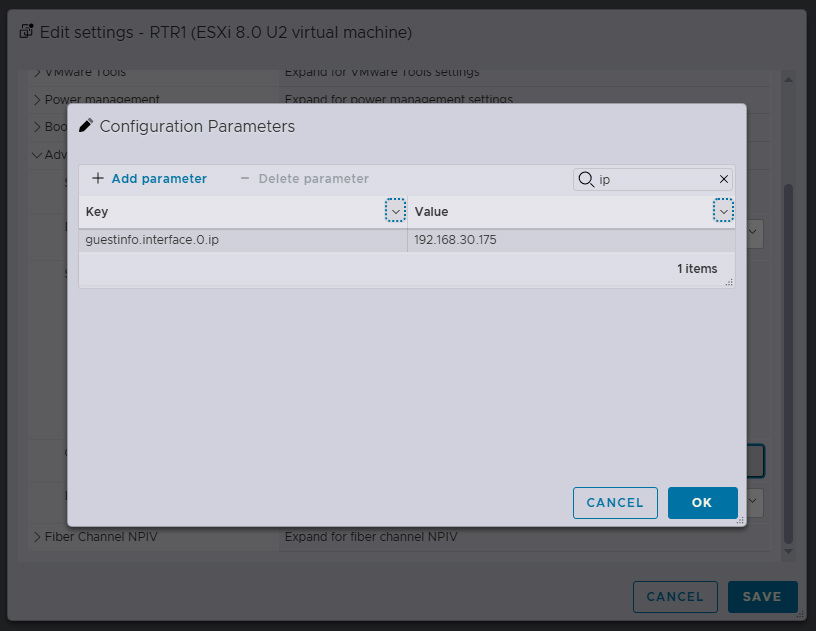
          guestinfo.interface.0.ip: '192.168.30.175'   # <=== Using guestinfo.interface.0.ip under settings, these will receive the values upon boot in vmtools
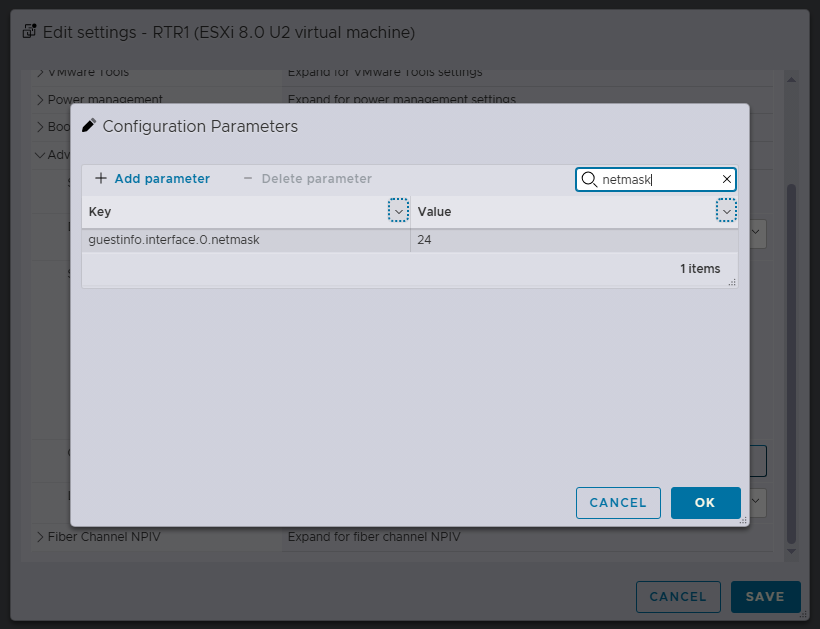
          guestinfo.interface.0.netmask: '24'   # <=== Using guestinfo.interface.0.ip under settings, these will receive the values upon boot in vmtools

    - name: Power on the VM for the first time
      community.vmware.vmware_guest:
        hostname: 192.168.30.76
        username: root
        password: password
        datastore: datastore
        validate_certs: false
        name: RTR1
        state: poweredon
        wait_for_ip_address: true
      delegate_to: localhost

# The below is just to remove the values added to the VMX file
    - name: Configure Guest OS Isolation Settings
      vmware.vmware.vm_advanced_settings:
        hostname: 192.168.30.76
        username: root
        password: password
        name: RTR1
        validate_certs: false
        state: absent
        settings:
          guestinfo.interface.0.ip: '192.168.30.175'
          guestinfo.interface.0.netmask: '24'
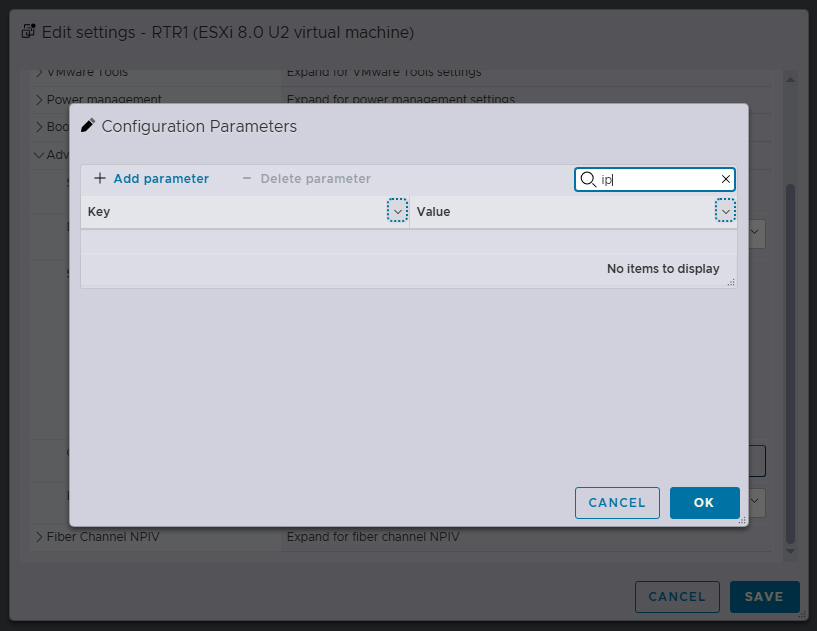
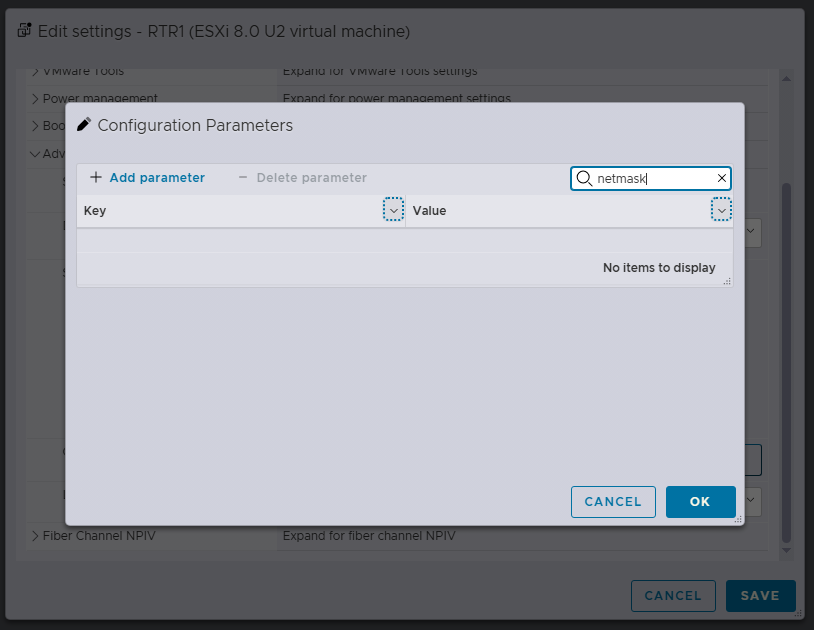
BEFORE VMX INJECTION
AFTER VMX INJECTION
The values received can also be checked in VyOS after it boots up with the below commands
Last login: Mon Jul 27 20:33:47 2026 from 192.168.30.1
vyos@vyos:~$ sudo -i
root@vyos:~# vmtoolsd --cmd "info-get guestinfo.interface.0.ip"
192.168.30.175
root@vyos:~# vmtoolsd --cmd "info-get guestinfo.interface.0.netmask"
24
Last login: Mon Jul 27 20:33:47 2026 from 192.168.30.1
vyos@vyos:~$ show interfaces
Codes: S - State, L - Link, u - Up, D - Down, A - Admin Down
Interface    IP Address         MAC                VRF        MTU  S/L    Description
-----------  -----------------  -----------------  -------  -----  -----  -------------
eth0         192.168.30.175/24  00:0c:29:10:07:26  default   1500  u/u
eth1         -                  00:0c:29:10:07:30  default   1500  u/u
lo           127.0.0.1/8        00:00:00:00:00:00  default  65536  u/u
             ::1/128